
Quickstart - Create apps and workflows
In an automation environment, an app provides a deployable and scalable package for related workflows, connections, parameters, analytics, and settings so they deploy and scale together. Without this boundary, automations for different business processes can get disorganized, making them harder to independently test, monitor, and update.
To keep each group of related automations self-contained in your environment, create one app per logical workload or related workflows, for example, order-processing or daily-reports.
In an app, each workflow is the automation workload that starts with a single starting event, or trigger, followed by the steps to run, or actions.
When you build a business process automation, you want to define the business logic only once, and then run the automation reliably and autonomously with human oversight when necessary. For example, some automation tasks might include routing notifications, running operations in various services or systems, or monitoring data feeds.
This quickstart shows how to complete the following tasks:
- Create or open an app in an existing environment.
- Build and run a sample workflow.
- Review what happened.
You can later use the workflow as a template and swap in what you actually want to automate.
Requirements
Section titled “Requirements”-
A Microsoft work or school account in the same Microsoft Entra tenant as the environment creator-owner.
Your account must exist in the same tenant so the environment creator-owner can add you to the environment. You don’t need an Azure subscription to create apps and workflows in an automation environment.
-
Access to the Azure Logic Apps Automation portal.
-
Contributor or Author role on the environment resource to create apps and workflows.
If you don’t have environment access, contact the environment creator-owner so they can add you with the required permissions.
1. Open your environment
Section titled “1. Open your environment”-
Sign in to the Azure Logic Apps Automation portal.
The portal opens and shows every environment where you have access. If you don’t see the expected environments, contact the environment creator-owner to check whether you have the correct permissions.

-
On the Environments tab, select your environment.
The portal opens the environment and shows the Apps page. The following example shows an empty environment:

-
If the environment is empty, go to the next section to create an app.
Otherwise, select the app where you want to create your workflow, and skip to Create your workflow.
2. Create an app
Section titled “2. Create an app”If your environment doesn’t include an app to store and organize workflows, follow these steps to create an app:
-
In the environment, on the Apps page, select Create app.
-
In the Create application box, for Application name, enter a name for your app, and select Create.

The portal might take a couple minutes to create your app.
-
To check that the app is ready for you to open and continue, review the Status column.
-
After app creation completes, select your app.
The portal opens the app and shows the Workflows list. The following example shows an empty app:

At this point, only you can view the app and its contents. By design, the app is invisible to others except for the environment owner and contributors who can view the app metadata.
-
Before others can create workflows in your app, add them as app members.
App ownership and privacy
Section titled “App ownership and privacy”As the app creator, you automatically:
-
Become the app owner and appear in the Owner app property, which is a property, not a permission level. You can’t clear or remove this property value.
-
Have Contributor role permissions on the app resource.
App privacy works as follows:
-
Apps are always automatically private. Only app creator-owners can view and access their app’s contents, such as workflows, connections, settings, and so on.
-
Environment owners and contributors can view app metadata for governance. However, they can’t view workflow content, connections, or workflow run history.
-
Other environment members can’t view the app unless the app creator-owner adds them to the app and gives them the appropriate permissions.
Apps often contain automations that connect to personal accounts. The default privacy model keeps sensitive data obscured and invisible to others unless the app creator-owner chooses otherwise.
For more information, see Permissions.
Add app members
Section titled “Add app members”To add team members to your app so they can build workflows, follow these steps:
-
In the Azure Logic Apps Automation portal, on the Environments page, select the environment that contains your app.
-
On the Apps page, select the app. On the app sidebar, select Settings.
-
On the Settings page, select the User permissions tab, and complete the following steps:
-
In the Users section, select Add user.
-
On the Add role assignment pane, in the Select user box, browse for the person you want. Or, enter their email address.
The Select user list shows only people in the same Microsoft Entra tenant as you.
-
From the results, select the person you want.
-
-
After the Role section appears, select the role the person needs, based on the principle of least privilege, and then select Add.
The following table describes the available roles at the app level, what they can do, and what they can’t do:
Role Can Can’t Reader (view only) - View workflows, connections, and parameters.
- View workflow run history.- Create, edit, or delete anything.
- Trigger or cancel workflow runs.Contributor - View and edit workflows, connections, and parameters.
- View workflow run history.
- Trigger, cancel, and resubmit workflow runs.
- Manage app permissions.Delete the app. (owner only)
3. Create your workflow
Section titled “3. Create your workflow”-
In your app, on the Workflows page, select Create workflow.
-
In the Create workflow box, enter the name, and select Build.
-
After the portal opens the designer, choose an option to start creating your workflow.
Option Path AI assistant Generate your workflow on the designer, based on your description about what the workflow does.
For more information, see Generate workflow with assistant.Designer Add the trigger and each action from the connectors library.
3a. Generate a workflow with the assistant
Section titled “3a. Generate a workflow with the assistant”-
On the bottom toolbar, select Copilot.
-
In the chat box, enter your workflow description. Select Generate.
The following example shows the AI assistant and a workflow description:

The following example shows the assistant-generated workflow:

Generated workflows still need setup. The AI assistant generates the workflow scaffolding, such as the trigger, actions, branches, and so on. But the assistant doesn’t know your credentials or environment-specific values. Before you run your first workflow, complete any required follow-up tasks.
-
Complete any remaining follow-up tasks that your workflow needs to run successfully, for example:
-
Add any required parameter values that the assistant left empty.
-
Open the information box for the trigger and each action.
-
Find the parameters marked with an asterisk or red outline.
-
-
Configure the connections for each connector trigger and action.
-
On your app sidebar, select Connections. Review each connection and complete the necessary setup.
-
In the designer, open the information box for the connector trigger and each action. Review the Connection tab and complete the necessary setup.
-
-
Resolve any prompts on the trigger or actions that show a label named Finish configuring with Copilot.
-
3b. Build a workflow with the designer
Section titled “3b. Build a workflow with the designer”When you start with an empty designer, manually add the trigger and actions that provide your workflow’s behavior.
Add the trigger
Section titled “Add the trigger”Every workflow starts with a trigger, which identifies the event or condition that runs the workflow.
-
On the empty designer, select Add a trigger.

-
When the Add a trigger pane opens, search or browse the triggers. Select the trigger you want.

For example:
Trigger type Trigger name Description Request When an HTTP request is received A webhook trigger that handles incoming requests sent from external callers. Schedule Recurrence A trigger that runs on a specified schedule. -
In the trigger information box, enter any required details, and then close the box.
Your selected trigger appears on the designer, like the following example:

Add an action
Section titled “Add an action”After the trigger, an action performs a specific task in the workflow.
-
On the designer, following the trigger, select the plus sign (+) to add an action.
-
When the Add an action pane opens, search or browse the actions. Select the action you want.

-
In the action information box, enter any required details for the action to work, and then close the box.
Your selected action appears on the designer.
For actions that run in parallel, branches automatically appear on the designer. For example, the following workflow shows these branches and includes a final response back to the caller who sent the request:

Other designer actions
Section titled “Other designer actions”On the designer, the bottom toolbar gives you the following controls, which are covered later in this guide:
| Action | Description |
|---|---|
| Add | Add an operation anywhere on the designer. |
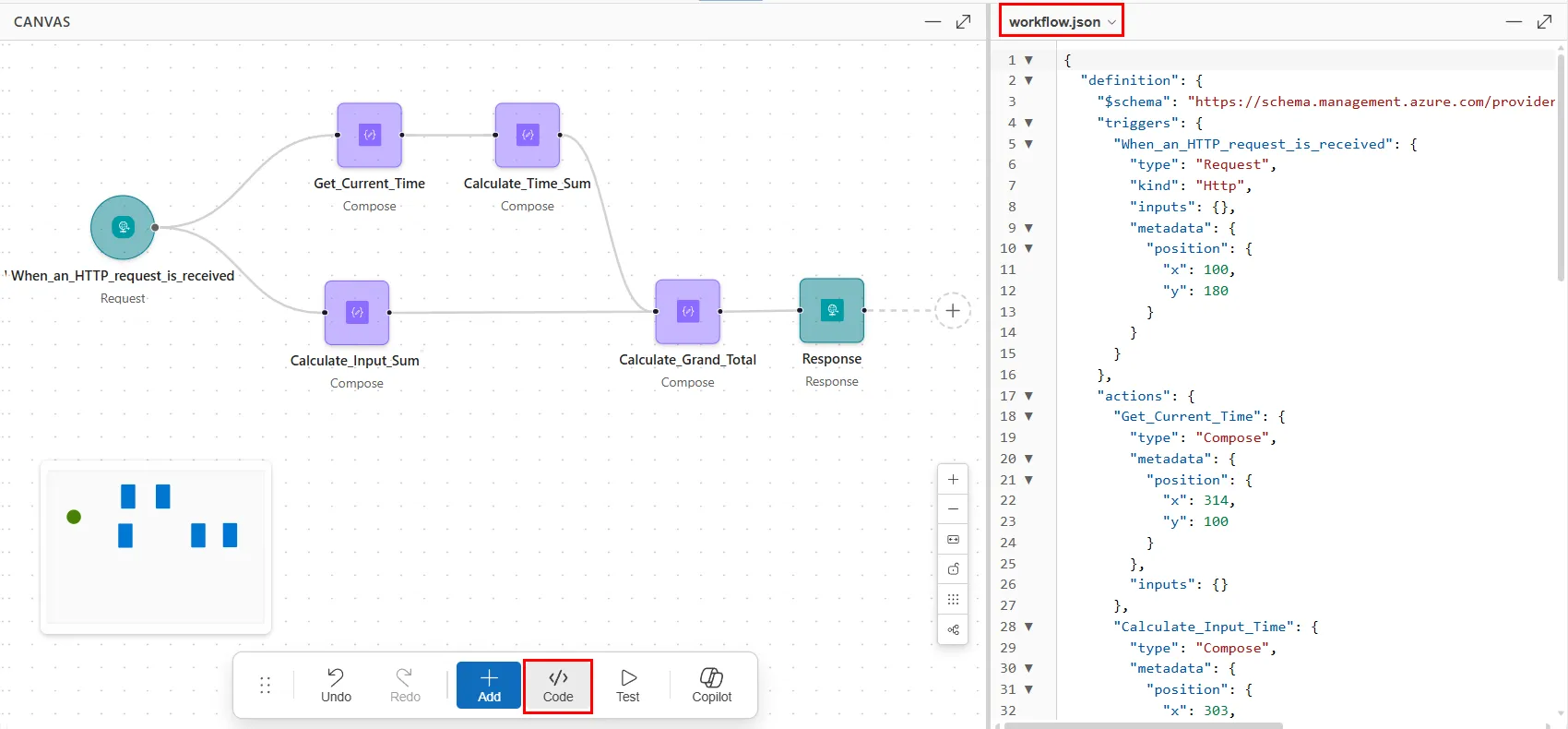
| Code | View the raw underlying JSON alongside the designer. |
| Test | Run the workflow with a test payload without publishing. |
| Copilot | Open the AI assistant alongside the designer to iterate over your workflow. |
4. Edit your workflow with AI or in code
Section titled “4. Edit your workflow with AI or in code”To continue editing your workflow, you have the following options:
-
Keep using the designer.
-
Describe your changes in natural language by opening the AI assistant.
-
Directly edit the workflow’s underlying JSON definition by switching to the code editor. Changes stay synchronized between the code editor and designer.
The following example shows the AI assistant with instructions to edit a workflow:

The following example shows the open code editor where you can directly edit a workflow’s JSON definition:
5. Test for missing setup details
Section titled “5. Test for missing setup details”When you create or edit a workflow in the designer, you always work on a draft version. For example, note the Draft label on the designer’s title bar:

To quickly find any missing configuration information while you work in draft mode, you can test workflows that start with HTTP triggers. To test non-HTTP triggers, first publish your draft.
-
In the designer, on the bottom toolbar, select Test to open the Test draft workflow box.
-
In the Trigger box, confirm the selected trigger.
-
In the Test data (JSON) box, enter any sample JSON body input that the trigger needs to run, for example:
{"number_1": 5,"number_2": 10}The following example shows the sample JSON body input:

-
After you finish, select Test Draft.
The Monitoring tab opens to show the running workflow. After the run completes, in a side window, the Runs tab shows the workflow’s run history, including details such as status and duration.
The following example shows a successful run, run history, execution log, and other information about each operation in the workflow run:

For commonly-used triggers that fire in draft mode versus published mode, see Workflows.
6. Publish draft to production
Section titled “6. Publish draft to production”To promote your draft workflow to production, follow these steps:
-
On the Designer tab, in the upper right corner, select Publish.
-
To switch to the published workflow, next to Publish, from the vertical ellipses (…) menu, select View published version.

7. Run and monitor your workflow
Section titled “7. Run and monitor your workflow”To run a published workflow and monitor the progress, follow these steps:
-
Next to the Designer tab, select Monitoring.
-
Based on whether previously run workflows exist, choose from the following actions:
Previously run workflows? Action No Select Run workflow. Yes In the side window, on the Runs tab, select Run. -
In the Trigger box, confirm the selected trigger.
-
In the Test data (JSON) box, enter the sample JSON body input that the trigger needs to run.
The following example shows sample JSON body input and includes the automatically generated and callable endpoint URL, which you can use to call and trigger the workflow:

-
After you finish, select Run.
The Monitoring tab opens to show the running workflow. After the workflow run completes, in a side window, the Runs tab shows the workflow’s run history, including details such as status and duration.
The following example shows a successful run, run history, execution log, and other information about each operation in the workflow run:

8. Examine the run history
Section titled “8. Examine the run history”To explore the run history in more detail, follow these steps:
-
On the Runs tab, select the run you want.
-
On the canvas or in the execution log, select the trigger or an action to review the values on the pane with the Output, Input, and Properties tabs.
If any actions failed, the same pane shows the error messages and stack trace so you can diagnose without changing context.
9. Iterate on your workflow
Section titled “9. Iterate on your workflow”To edit your workflow, return to the Designer tab and select Edit draft. Or, send follow-up instructions to the assistant.
For example, you might ask the assistant to add error handling to the HTTP action or use Slack to post alerts instead.
The portal saves your changes in draft mode until you publish.